
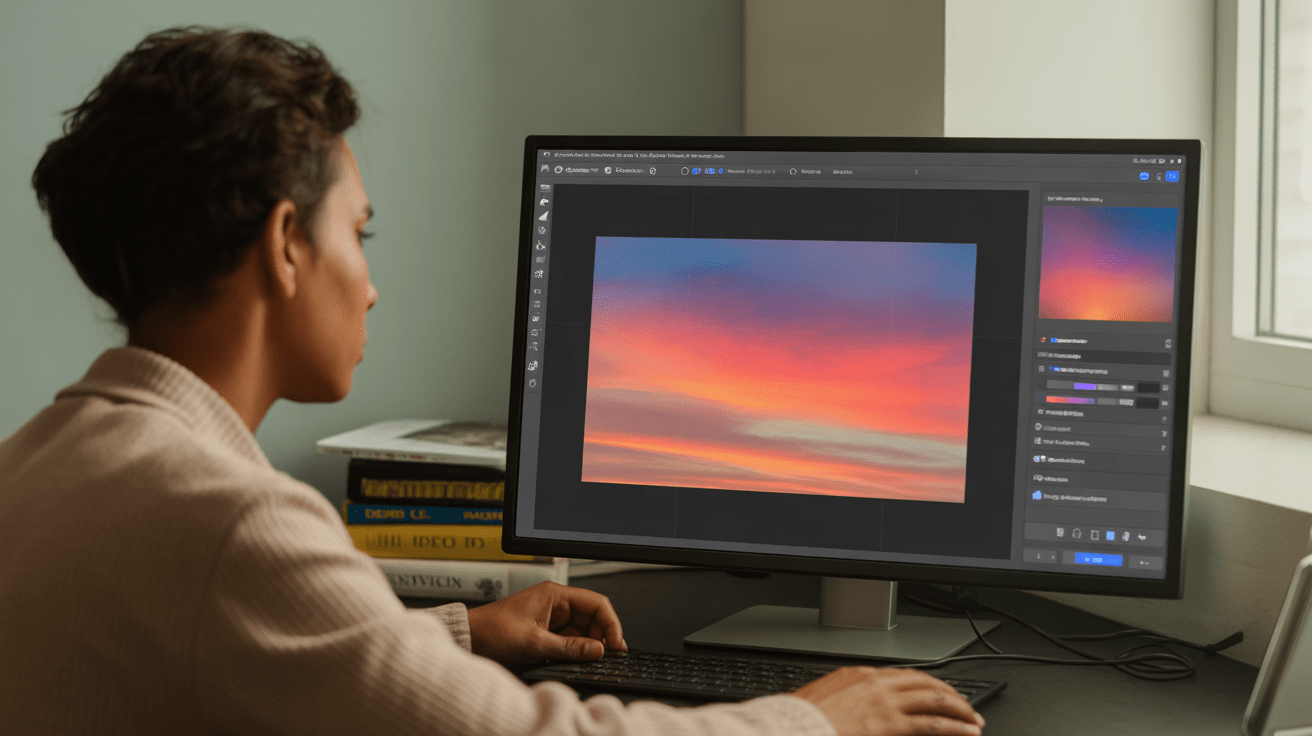
: An Engineer’s deep Dive
Adobe Photoshop remains the industry standard for photo editing, favored by developers, researchers, and creatives alike for its unparalleled blend of power and versatility. Whether you’re a founder preparing marketing assets, a developer crafting UI assets, or a researcher analysing visual data, mastering basic Photoshop editing techniques can significantly elevate your visual output.
This article plunges into how to use Adobe Photoshop for basic photo editing with an engineer’s analytical lens. We dissect core Photoshop functionalities, provide hands-on guidance, and reveal the efficiency best practices indispensable for professionals in tech disciplines. By the end, you’ll grasp essential workflows, tool configurations, and practical applications to streamline your editing pipeline.
Understanding the Core Workflow of Adobe Photoshop for Image Editing
How Photoshop’s Layer-Based Architecture Empowers Editing Precision
Photoshop’s core innovation is its non-understanding-solar-benefits/” title=”… the Solar Benefits: Harnessing Energy …”> non-destructive layer architecture. Each edit can be isolated on its own layer, enabling flexible adjustments and reversions essential for technical and iterative photo manipulation. Unlike flat image editors, this structure allows composite editing-masking, blending, and filtering without permanent pixel modifications. Such as, Adding a brightness/contrast adjustment layer preserves original image fidelity, necessary for scientific imaging or UI asset workflows.
Essential Photoshop Tools for Basic Editing: A Tactical Breakdown
Photoshop includes a comprehensive toolset,but these few are indispensable for basic edits:
- Move Tool: Position layers precisely.
- Crop Tool: Frame images accurately for composition downstream.
- adjustment Layers: Non-destructive colour and exposure corrections.
- Brush Tool: For retouching and masking.
- Clone Stamp & Healing Brush: remove blemishes or artefacts.
- Selection Tools: Precisely isolate image areas for selective editing.
Setting Up Your Photoshop Workspace for Efficiency
For optimal use, customise the workspace by enabling key panels: Layers, Properties, Histogram, and Adjustments. Developers and researchers gain from toggling the Photoshop Preferences to optimise performance-adjusting cache levels for complex files and GPU acceleration for smoother real-time preview.
Step-by-Step Guide: Performing Basic Photo Enhancements in Photoshop
How to Correct Exposure and Contrast Using Adjustment Layers
One of the first corrections is achieving proper exposure balance without quality loss. Follow these steps:
- open your image:
File > Open.
- open your image:
- Create an adjustment layer:
Layer > New Adjustment Layer > Brightness/Contrast.
- Create an adjustment layer:
- Adjust sliders carefully, viewing real-time histogram changes (official guide).
- Add
LevelsorCurvesadjustment layers for precise tonal editing, adjusting the shadows, midtones, and highlights curves.
- Add
This maintains the image quality by preserving the original pixels on a separate layer.
Cropping and Straightening for Composition Optimization
Sometimes, reframing is essential to guide viewer focus or prepare assets for UI or marketing:
- Select the Crop Tool (C); drag to select desired framing.
- Use the straighten tool within the crop menu to align the horizon or structural edges.
- Press Enter to apply.
Cropping is destructive if applied directly on the background layer; thus using Crop Tool on a duplicated layer is recommended.
Removing Unwanted Elements: Clone Stamp and Healing Brush in Action
To erase distractions, deploy the Clone Stamp or Healing Brush:
- Zoom in and select the
Clone Stamptool (S).
- Zoom in and select the
- alt-click to sample a clean area.
- Brush over the unwanted pixels.
- Alternatively, use the
Healing Brushfor automatic texture and lighting blending.
- Alternatively, use the
Optimizing Color Balance and saturation for clean, Accurate Results
Using the Color Balance Adjustment Layer
Photos captured in mixed lighting can have color casts. Fix this by:
- Create a Color Balance layer:
Layer > New Adjustment Layer > Color Balance.
- Create a Color Balance layer:
- adjust midtones, shadows, and highlights sliders toward desired hues.
- Toggle the layer visibility to compare before-and-after states.
Applying Vibrance for Natural Saturation Boosts
Vibrance selectively amplifies muted colors, preventing oversaturation of skin tones and skies, making it ideal for portraits and landscapes:
- Add a
Vibranceadjustment layer.
- Add a
- increase vibrance slider to desired levels.
save & Export Strategies for Web, Print, or Research Use
Choosing the Right File Format and Settings
Understanding output requirements guides your export approach:
- Web: Use
Export As > JPEG or PNGfor balancing file size and quality.
- Web: Use
- Print: Export high-resolution TIFF or PDF with CMYK color mode (best for printers).
- Research: Preserve metadata by saving as PSD or TIFF.
Step-by-Step Export Example for Web Usage
- Click
File > Export > Export as.
- Click
- Select JPEG, set quality to ~80%, enable sRGB color profile.
- Resize image pixel dimensions for device requirements (e.g., 1920×1080 px for HD web banners).
- Click Export.

Leveraging Masks for Targeted, Non-Destructive Adjustments
Masking Fundamentals: Concept and Execution
masks enable selective editing by revealing or hiding parts of layers without altering original pixels:
- Add a mask by selecting a layer and clicking the Mask icon.
- Use black on the mask with a brush tool to conceal areas.
- Use white to reveal concealed sections.
This approach preserves reversibility critical for experiments or design iterations.
How to Combine Masks and Adjustment Layers
Masked adjustment layers let you apply color, brightness, or other edits to precise image regions. Such as, brighten only the subject’s face while leaving the background untouched, a powerful technique in product photography.
Essential Keyboard Shortcuts and Automation Tips for Power Users
Top Shortcuts to Speed Up basic Editing
Ctrl+J / Cmd+J– Duplicate Layer
B– Brush Tool
C– Crop Tool
Ctrl+Z / Cmd+Z– Undo
Shift+Ctrl+Alt+E / Shift+Cmd+Option+E– Stamp Visible (creates merged snapshot)
Scripting and Actions: Automating Repetitive Tasks
Developers can exploit Photoshop’s powerful scripting interface and recordable Actions to batch-process edits or apply consistent filters across datasets. Read more on photoshop Scripting Guide.
Color Profiles and Calibration: Ensuring Consistent Color Accuracy
Why Calibration matters for Developers and Researchers
Color accuracy is paramount for UI consistency, printing fidelity, or data imagery analysis. Photoshop supports ICC profiles and device calibration to align display output with standards.
Setting Up Color Profiles in Photoshop
- Navigate to
Edit > Color Settings.
- Navigate to
- Choose appropriate profiles (e.g., sRGB IEC61966-2.1 for web, Adobe RGB for print).
- Embed profiles during export for color-managed workflows.
Managing file Size and Performance with Large Image Assets
Tips to Optimize Photoshop Performance on Heavy Files
- Use linked smart objects rather than embedding huge raster files.
- Enable 16-bit per channel mode only when necessary; use 8-bit to reduce size.
- Regularly purge histories and caches:
Edit > Purge.
- Regularly purge histories and caches:
Balancing Image Quality and File Size
Tech professionals often weigh file weight against fidelity. Using layers efficiently and flattening carefully before export can reduce unnecessary data payload.
Understanding Basic Retouching techniques to Improve Image Quality
Using Spot Healing and Patch Tools for Quick Fixes
Retouching simple flaws or sensor dust is achievable within seconds:
- Select Spot Healing Brush Tool (J).
- Click or drag over blemishes.
- The Patch Tool allows selecting larger areas and blending replacements seamlessly.
Frequency Separation Technique for Advanced Texture Retouching
This technique separates an image’s texture from color/tone, allowing ultra-fine editing. Though advanced, it is useful to know its existence for layered basic edits growing in complexity.
Exporting Photoshop Edits for Collaborative, Cross-Platform Use
Utilizing Cloud Documents and Version Control
Adobe Photoshop’s recent integration with Creative Cloud supports cloud documents enabling team collaboration, version tracking, and rollback. This is essential for founders and teams iterating marketing assets or product mockups.
Exporting to Versatile Formats for Developer Toolchains
Exporting assets as SVG, PNG, or PSD allows smooth ingestion into developer tools like Figma, Sketch, and code pipelines. Adobe’s official export documentation provides detailed workflows.
Troubleshooting Common photoshop Issues in Basic Editing
Fixing Color Banding in Gradients and Adjustments
Banding occurs as of limited bit-depth.Remedy by enabling 16-bit mode or using dithering when exporting for smooth gradients.
resolving Slow Performance or Lagging UI
Check GPU settings, purge caches, and increase allocated RAM in Preferences > Performance to improve responsiveness.
Final Thoughts on Mastering photoshop for Tech Professionals
From UI engineers crafting assets to researchers refining imagery for publication, understanding and harnessing Adobe Photoshop for basic photo editing can significantly enhance output quality and productivity. The program’s layered architecture, non-destructive tools, and extensive export options create a versatile, future-proof visual editing surroundings.
For informed users in technology domains, adopting Photoshop’s capabilities offers a clear edge in delivering high-quality edited photos rapidly and reliably - and it’s just the beginning!