: An Engineer’s Deep dive
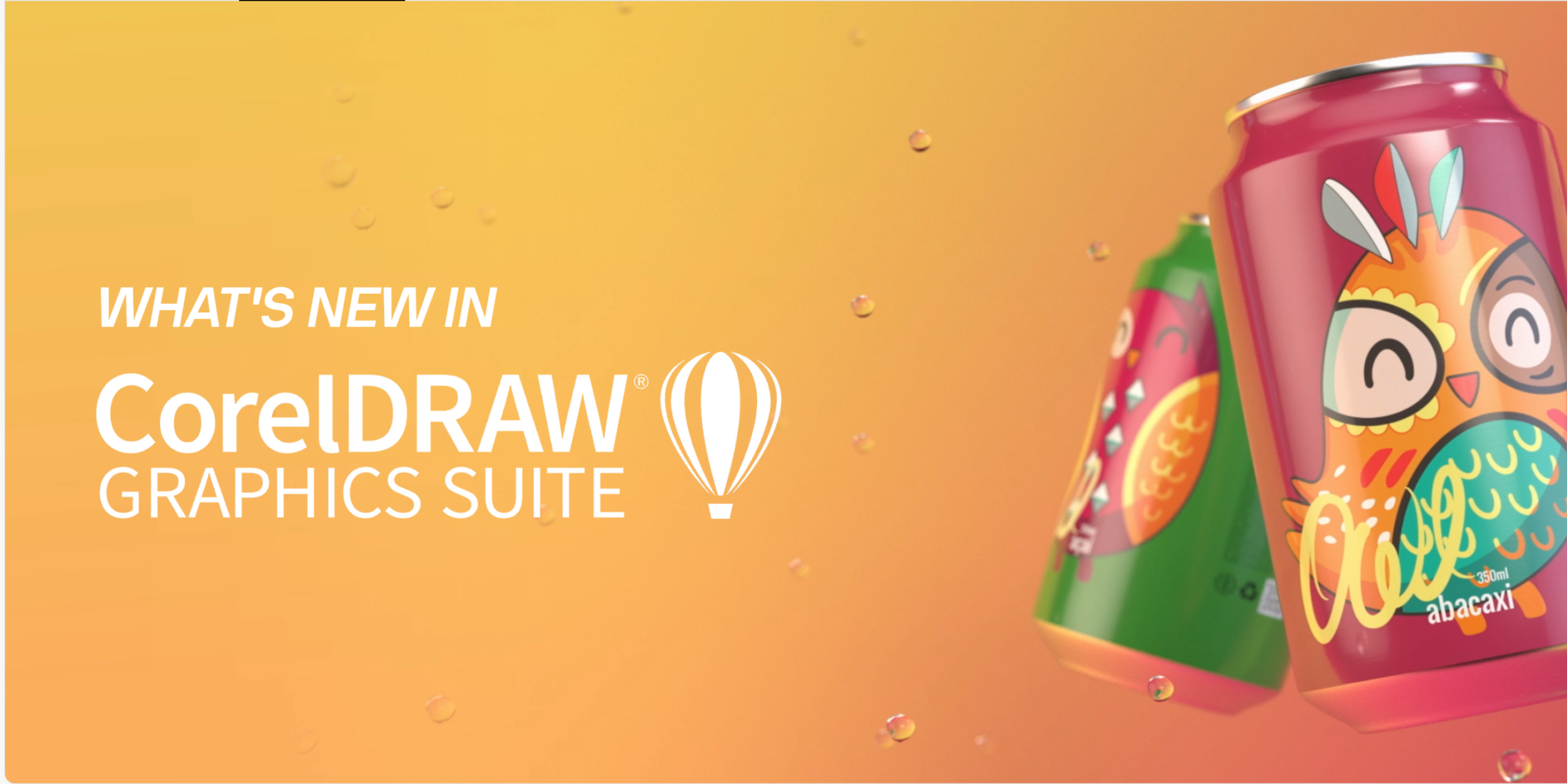
CorelDRAW remains one of the most powerful vector graphic design tools for crafting professional logos. Its unique blend of precision, versatility, and intuitive features creates a compelling choice for developers, designers, and technical founders looking to elevate brand identity. this detailed exploration dissects CorelDRAW’s core capabilities, workflows, and optimization tips focused specifically on professional logo design – making it an indispensable guide for technically-minded creatives and informed investors alike.
Understanding the Vector Advantage in CorelDRAW for Logo Design
Why Vector Graphics ensure Scalability and Precision
CorelDRAW’s basic strength in logo design lies in its vector-based habitat. Unlike raster graphics, vectors use mathematical paths which render images resolution-independently. This means logos created in CorelDRAW can scale from business card size to large billboards without losing any fidelity or sharpness, critical for brand consistency across mediums.
CorelDRAW’s Proprietary Vector Engine: How It Works Under the Hood
The CorelDRAW engine employs Bezier curves extensively, allowing intricate control points and handles. This enables engineers and designers to construct smooth, precise curves or complex geometric shapes essential in professional logos.The software’s robust snapping and alignment features further enhance exact placement, guaranteeing technical exactness in logo compositions.
Common Pitfalls in Vector Logo Layouts and How CorelDRAW Prevents Them
Beware poorly constructed nodes or excessive anchor points that create spline irregularities. CorelDRAW’s node editing tools streamline simplifying vector paths, optimizing file size and render speed—which is vital for both print reproduction and digital interfaces.
Shape Tool to meticulously control node placement—this fine-tuning separates amateur logos from professional-grade trademarks.Mastering CorelDRAW’s Workspace Setup for Logo Projects
Configuring Document Settings for Logo Design
Start with setting yoru document’s color mode to CMYK for print or RGB for digital use,ensuring color accuracy.CorelDRAW’s default unit is typically millimeters, but switching to pixels or inches depending on output specifications will maintain design consistency. Also,configuring the page dimensions to typical logo spaces (e.g., square 800×800 px or 3000×3000 px for print) is foundational.
Utilizing Custom Workspace Layouts for Efficiency
The software allows customized docking of panels and toolbars. Creating a dedicated logo design workspace that features quick access to the Object Manager, Color Palette, and Property Bar expedites workflow, critical for tight delivery schedules.
Leveraging Templates and Symbol Libraries
CorelDRAW supports reusable logo templates and symbol libraries. You can build and save your branded components or predefined shapes as symbols, which can be updated globally—a powerful feature to maintain branding consistency across multiple projects or iterations.
CorelDRAW’s Advanced Drawing Tools Tailored for Logo Creation
Bezier and Pen Tool: Crafting Perfect Curves and Shapes
Logos frequently rely on flawless curves and geometric precision. the Pen tool combined with the Shape tool offers meticulous control over each curve segment. Using CorelDRAW’s smart guides and snapping options guarantees perfect intersections and alignments critical in logo design.
Using the Ellipse and Polygon Tools for Symbolic Shapes
Many logos incorporate geometric figures—circles, hexagons, stars—that CorelDRAW generates effortlessly. The polygon tool provides customizable sides and star points, allowing creative variations on standard shapes to render unique logos.
Dynamic Object Manipulation: Change and Shaping
CorelDRAW’s interactive tools let you rotate, scale, skew, and distill shapes while maintaining proportionality—a must for creating balanced logos. Using the shaping docker (for Weld, Trim, Intersect) lets you combine or subtract paths for complex logo designs without losing vector integrity.
Effective Color Management in CorelDRAW for Brand Logos
Why Color Profiles Matter in Logo Design
CorelDRAW supports ICC color profiles, ensuring that colors you see on screen match printed or digital outputs. Choosing the right palette aligned to brand standards (Pantone, CMYK, or RGB values) strengthens brand recognition and prevents costly revisions.
Gradient, Mesh, and fill effects for Logo Depth
While many logos opt for flat colors, CorelDRAW offers advanced fills including gradient, mesh, and pattern fills. These enrich logo visual impact, especially in digital applications such as websites and app icons. Skillful use of gradient meshes can suggest three-dimensional depth without compromising vector fidelity.
Color harmony Tools and Accessibility Checks
CorelDRAW’s harmony checker allows testing palettes for contrast and balance. Accessibility, especially contrast ratios (≥4.5:1 for text/logos on backgrounds), is a critical KPI in modern branding to ensure inclusivity across digital platforms.
Color Styles management to globally update colors across variants, aiding rapid brand refresh cycles.Typography Integration for Logos in CorelDRAW
Text Objects and Path Alignment Techniques
Whether incorporating logotypes or symbolic typography, CorelDRAW provides excellent control over text objects. Text can be attached to paths,warped,or converted to curves for custom lettering. This ensures fonts behave consistently across all media.
Outline and Curve Conversion: Locking in Font Shapes
Converting typography to curves prevents font substitution issues when sharing logo files with clients or printers. CorelDRAW’s outline tools allow fine editing of letterforms to tailor letter spacing,weight,or add stylistic customizations to truly unique wordmarks.
Font Licensing and Ethical Considerations
Always verify font licenses when designing professional logos to avoid legal issues. CorelDRAW supports variable fonts, and its ecosystem allows easy management of licensed font libraries integrated via Typekit or Google Fonts.
CorelDRAW’s Export and Output Optimization for Logo Files
choosing the Right File Formats for Professional Logos
Exporting logos demands consideration of intended use.CorelDRAW can output industry-standard formats: SVG (scalable web), PDF (print-ready), EPS (vector editing compatibility), PNG (transparent raster), and more. Understanding each format’s application domain is crucial for professional deployment.
Optimizing Vector Paths and Reducing File Size
Complex logos can result in bloated file sizes. CorelDRAW offers automated path simplification and optimization tools that reduce anchor points without visually degrading quality—useful for web and mobile use cases.
print Production and Color Separation Settings
For print delivery, CorelDRAW supports detailed preflight checks including bleed, crop marks, and spot color separation. This ensures logo files meet production standards, minimizing errors and accelerated print runs.

Leveraging Macros and Automation to Boost Logo Design Efficiency
CorelDRAW Macros for Repetitive Tasks
CorelDRAW supports Visual Basic for Applications (VBA) macros, enabling automation of recurring operations such as batch color swapping, exporting multiple file formats, or symbol library updates. This is invaluable for scaling logo design processes in agency or enterprise environments.
Integrating Third-party Plug-ins and Extensions
The ecosystem offers tools that extend CorelDRAW’s capabilities—from AI-assisted vectorization to enhanced color management. Carefully selecting add-ons can drastically cut design cycles and improve iteration speed.
APIs and Scripting: Opportunities for Custom Tools
For technically inclined founders or developer teams, CorelDRAW’s SDK allows building custom workflows or embedding logo generation tools into larger brand asset pipelines. This aligns design assets directly with product and marketing tech stacks.
Common Challenges in coreldraw Logo Design and How to Overcome Them
Maintaining Consistency Across Multiple Variants
brand logos often require multiple variants: monochrome, icon-only, text lockups. Using CorelDRAW’s symbols and styles features ensures changes propagate uniformly, avoiding brand dilution.
Managing Complex Effects Without Loss of Vector Integrity
Effects like drop shadows or transparency can sometimes rasterize parts of logos unintentionally. CorelDRAW provides preview modes and settings to keep logos fully vector, preserving scalability.
Collaboration and Version Control Best Practices
collaborating on CorelDRAW files can be challenging due to proprietary formats. Exporting to shared editable PDFs or integrating cloud storage solutions with clear naming/version conventions mitigates workflow bottlenecks.
Case Study: How Top Brands Use CorelDRAW for Logo Design Workflows
Industry Application: Tech Startups Leveraging CorelDRAW’s Precision
many emerging technology firms rely on CorelDRAW to rapidly iterate logos that must appear polished both in app stores and print collateral. The software’s vector grounding ensures logos scale fluently across devices, from smartwatch icons to conference banners.
Legacy Trademark Restorations and Rebranding
CorelDRAW helps engineers and designers dissect legacy logo files for modernization without losing brand recognition—a critical factor in enterprise-level rebranding projects. Its node editing capabilities allow subtle curve adjustments that refresh logos while honoring tradition.
A Practical Guide: Step-by-Step CorelDRAW Logo Design Workflow
Step 1: Research and conceptual Sketching
Begin by researching brand values and competitor logos. Sketch preliminary ideas manually or digitally, aiming for concepts that distill brand essence into simple, recognizable forms.
Step 2: Setting Up the Document
Open CorelDRAW and configure document size, color mode, and workspace tailored for logo design. Import sketches for reference.
step 3: Constructing Vectors
Using the Pen, Ellipse, and Polygon tools, recreate the chosen concept digitally. Focus on precision and smooth curves, leveraging snapping and guide lines.
Step 4: Applying Color and Typography
Apply brand colors using color styles. Incorporate or design custom typography, converting to curves and refining letterforms as needed.
Step 5: Refinement and Iteration
Test multiple variations, tweaking geometry and colors while utilizing CorelDRAW’s preview modes to simulate different outputs.
Step 6: Export and Delivery
Export logo files in SVG, PDF, PNG, and EPS formats tailored for client needs. Use color profiles and output settings optimized for print and digital media.
SEO & industry Standards Compliance with CorelDRAW Logo Deliverables
Ensuring accessibility and Web Compatibility
Exported SVGs should be optimized for web accessibility. Adding aria-labels and descriptive title attributes in SVG helps in SEO ranking and enhances user experience.
Metadata embedding for Brand Assets
CorelDRAW lets you embed metadata inside image files. Proper metadata improves asset management, copyright enforcement, and discoverability in digital asset management systems.
Performance KPIs for Logo Implementation
Monitor loading times and clarity across devices to quantify logo effectiveness in real user environments—a critical practise in UX-driven design.
Future Trends: CorelDRAW’s Role in AI-Driven Logo Design
AI-Assisted Vectorization and Design Suggestions
CorelDRAW has begun integrating machine learning tools that automatically trace bitmap logos into refined vectors with editable paths. Future releases promise intelligent shape suggestions and color harmonization to accelerate design ideation.
Collaborative Cloud Tools Enhancing Real-Time Feedback
CorelDRAW’s cloud integration will soon enable developers and brand managers to co-edit and approve logos concurrently, reducing time-to-market and improving stakeholder alignment.
integration with Growth and Marketing Pipelines
Deeper API connectivity will allow CorelDRAW to become part of automated brand asset pipelines feeding directly into product UI builds or campaign materials — a game changer for product managers and brand custodians.
Final Recommendations for Leveraging CorelDRAW in Logo Design
Adopting CorelDRAW as the backbone of your professional logo design workflow promises precision, scalability, and efficiency unmatched by many vector tools. By mastering CorelDRAW’s workspace setup, advanced drawing and color management tools, and integrating automation where possible, teams can deliver standout logos that perform across all media channels. In an age where brand identity is a vital technology asset, CorelDRAW stands ready to empower engineers, developers, and creative founders to bring visionary logos to life with pixel-perfect accuracy.
For further exploration,the official CorelDRAW documentation offers exhaustive technical guides: CorelDRAW Tutorials and Support. Also consider exploring insights on vector graphics fundamentals widely covered by MDN Web Docs’ SVG Path Tutorials and the evolving UI/UX best practices at Nielsen Norman Group.